
Install Proxmox Backup Server
Virtual Machine Manager (VMM)
Download Proxmox Backup Server ISO
https://www.proxmox.com/en/downloads/proxmox-backup-server/iso
Upload ISO to VMM
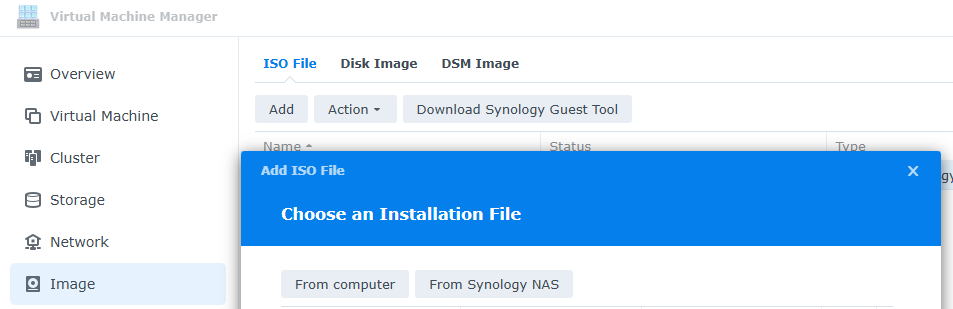
Open VMM > Image > ISO File > Add > From computer

Upload successful
Create VM
Add Network (as needed)
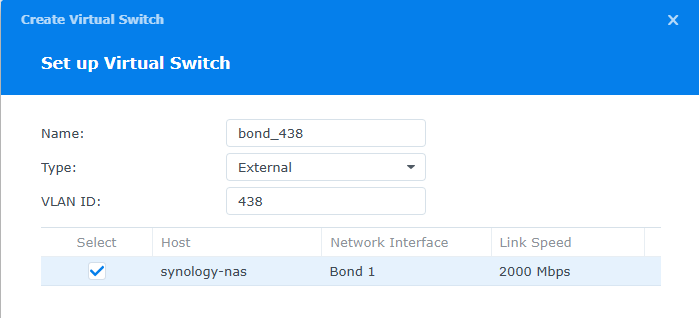
Click Network > Add
I'm using VLAN 438 here, as this is my dedicated VLAN for backup traffic.
You'll need to make sure you adjust any firewall rules as necessary for your Proxmox VE nodes to reach Proxmox Backup Server on tcp/8007.
Stage the VM
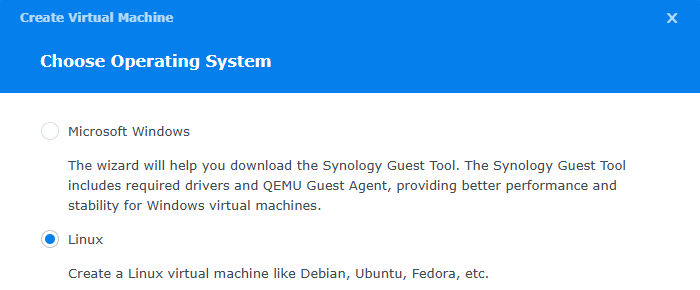
Click "Virtual Machine" > Create > Linux
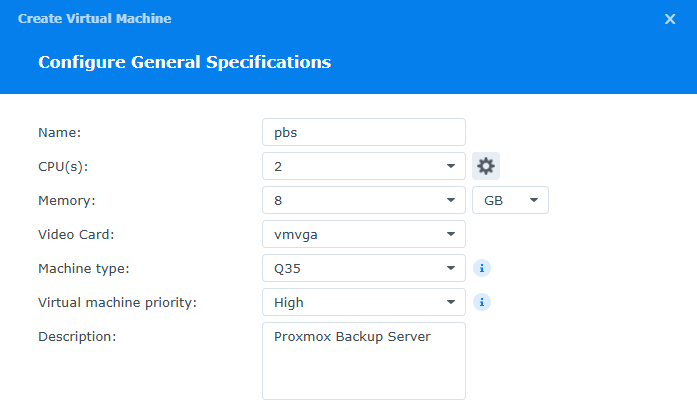
4 CPU is recommended, but my NAS only has 2 vCPU available
4 GB RAM, plus 1 GB per TB of storage
If unable to see the PBS login screen at boot, change the video card to vga
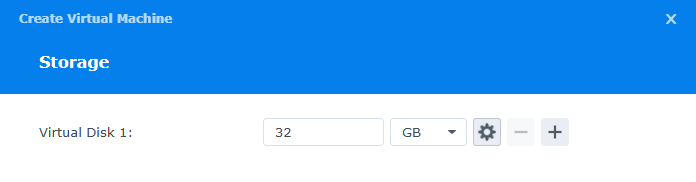
32 GB is sufficient for PBS host disk
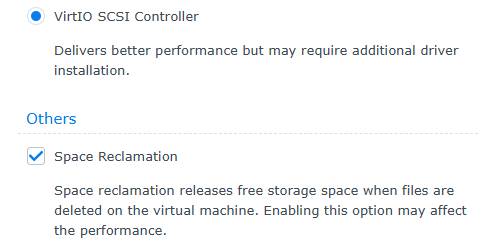
Click "Settings" > Enable Space Reclamation
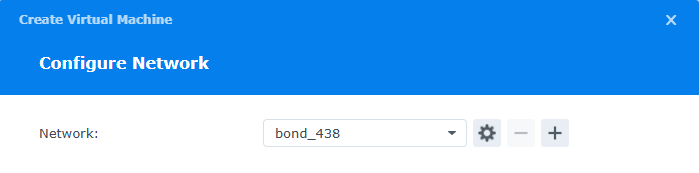
Putting the VM on dedicated VLAN
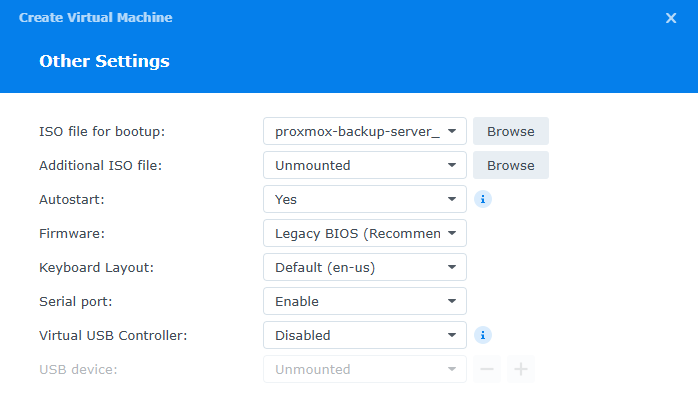
Set the .iso file for boot, Autostart to "Yes"
Power on and Install PBS

Select VM and click "Connect"
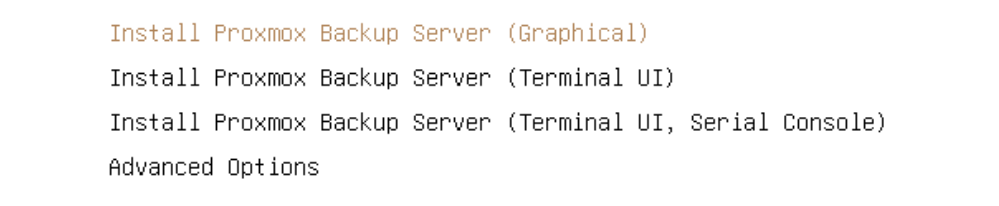
Install (Graphical, or however you prefer)

Looks good
When setting the root password, set something easy initially, then change once you can logon via HTTP / SSH and paste a stronger password in.
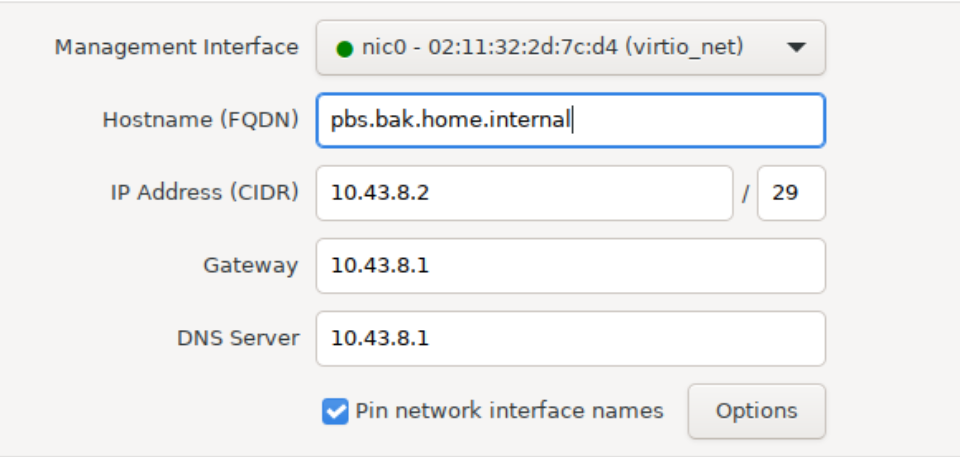
DHCP has pulled an IP in the dedicated VLAN
Upon installation, the interface will be set to static IP configuration. If you want to DHCP-enable the interface later, install isc-dhcp-client and edit /etc/network/interfaces to change the static config to dhcp.
Configure PBS
Log into your PBS server either via SSH or HTTP.
sed '/^[^#]/ s/^/# /' -i /etc/apt/sources.list.d/pbs-enterprise.sourcesDisable enterprise repository
cat << EOF > /etc/apt/sources.list.d/pbs-no-subscription.sources
Types: deb
URIs: http://download.proxmox.com/debian/pbs
Suites: $(grep VERSION_CODENAME /etc/os-release | cut -d '=' -f 2)
Components: pbs-no-subscription
Signed-By: /usr/share/keyrings/proxmox-archive-keyring.gpg
EOF
Enable the no-subscription repository
apt clean && apt update && apt upgrade -yUpgrade packages